
Imagine you just printed 5,000 flyers with a QR code. People might be scanning it, but you don't know how many. Or even worse, you don’t know if those scans are turning into customers.
QR codes bridge offline and online marketing, but without proper tracking, you're flying blind. You won't know if that tradeshow banner outperformed the direct mail campaign, or whether the QR code on your packaging is actually driving traffic.
Here’s the good news…
Tracking QR code scans is straightforward if you're using UTM parameters. They’re simple tags you add to your URL before generating the QR code. Any analytics tool can then attribute that traffic back to its original source.
In this guide, we'll walk through the exact steps to create trackable QR codes and view the results in your analytics—whether you're using Google Analytics 4 or a simpler alternative like GoodMetrics.
How QR Code Tracking Works
A QR code is just a visual representation of a URL. When someone scans it, they're taken to that URL.
If you generate a QR code for https://yoursite.com/promo, you'll see visitors arrive at that page—but you won't know they came from the QR code. They'll look the same as someone who typed the URL directly.
The solution is to add UTM parameters to the URL before creating the QR code:
https://yoursite.com/promo?utm_source=flyer&utm_medium=qr&utm_campaign=spring_sale
Now when someone scans that code, your analytics tool captures the source (flyer), medium (qr), and campaign (spring_sale). You can see exactly how many visitors came from that specific QR code and track what they did on your site.
This works with any analytics platform like Google Analytics, GoodMetrics, or anything else that reads UTM parameters.
How to Create a Trackable QR Code
Creating a trackable QR code takes two simple steps. First, add UTM parameters to your destination URL, then generate a QR code from that tagged link.
Step 1: Add UTM Parameters to Your URL
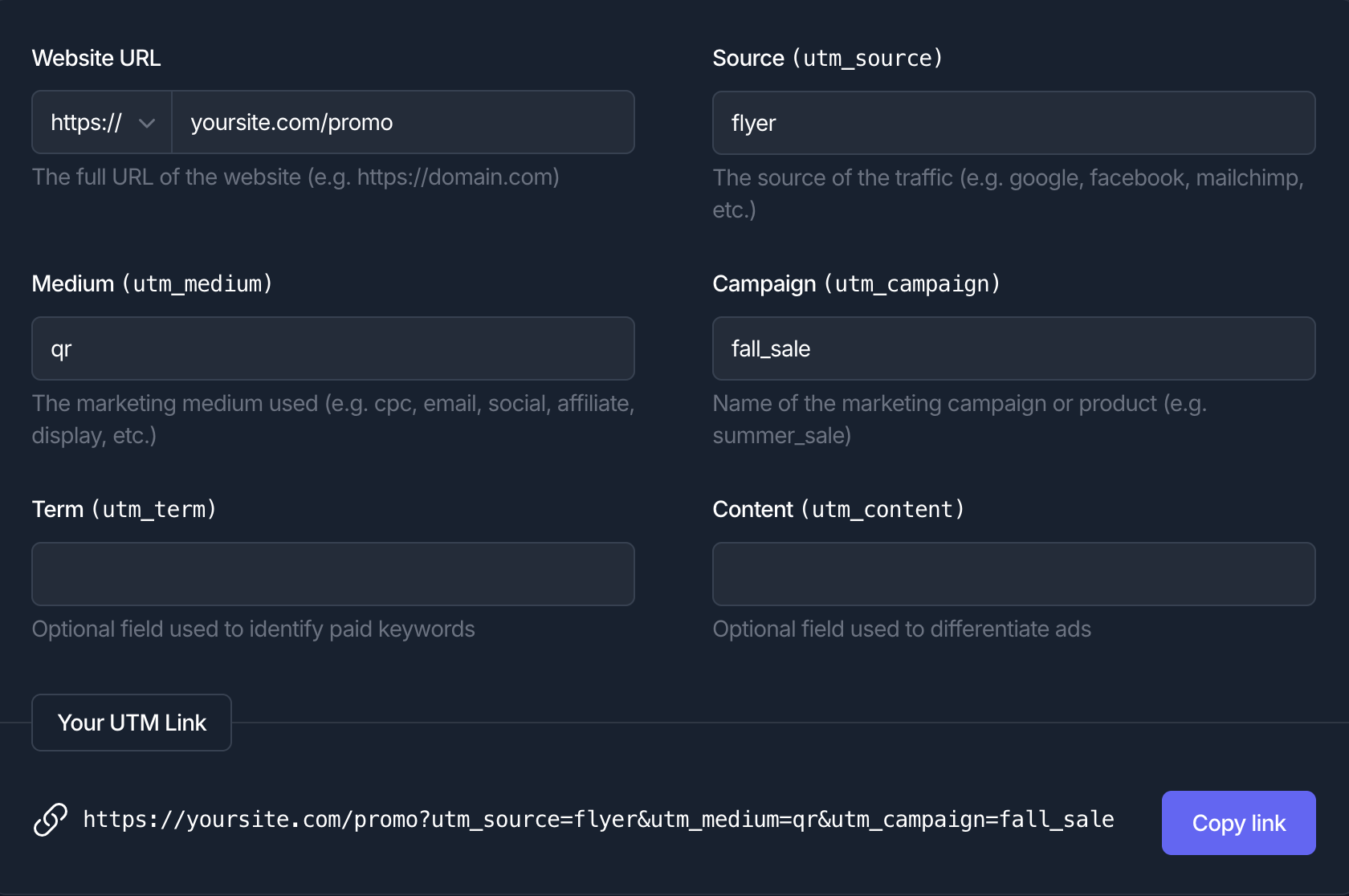
While it's possible to add UTM parameters manually, it's easy to make mistakes with formatting. We recommend using a UTM builder tool:
- Open our UTM builder.
- Enter your destination URL (e.g.,
https://yoursite.com/promo) - Fill in the parameters:
- Source: Where the QR code will appear (e.g.,
flyer) - Medium: Use
qrto identify this as QR code traffic - Campaign: The specific campaign or promotion (e.g.,
fall_sale)
- Source: Where the QR code will appear (e.g.,
- Copy the generated URL
Tips for QR code UTM parameters:
- Always use
qras the medium—this makes it easy to filter all QR traffic later - Make the source specific to the placement (e.g.,
restaurant_menu,takeout_bag) - Use campaign names that match your other marketing efforts for easy comparison
Step 2: Generate Your QR Code
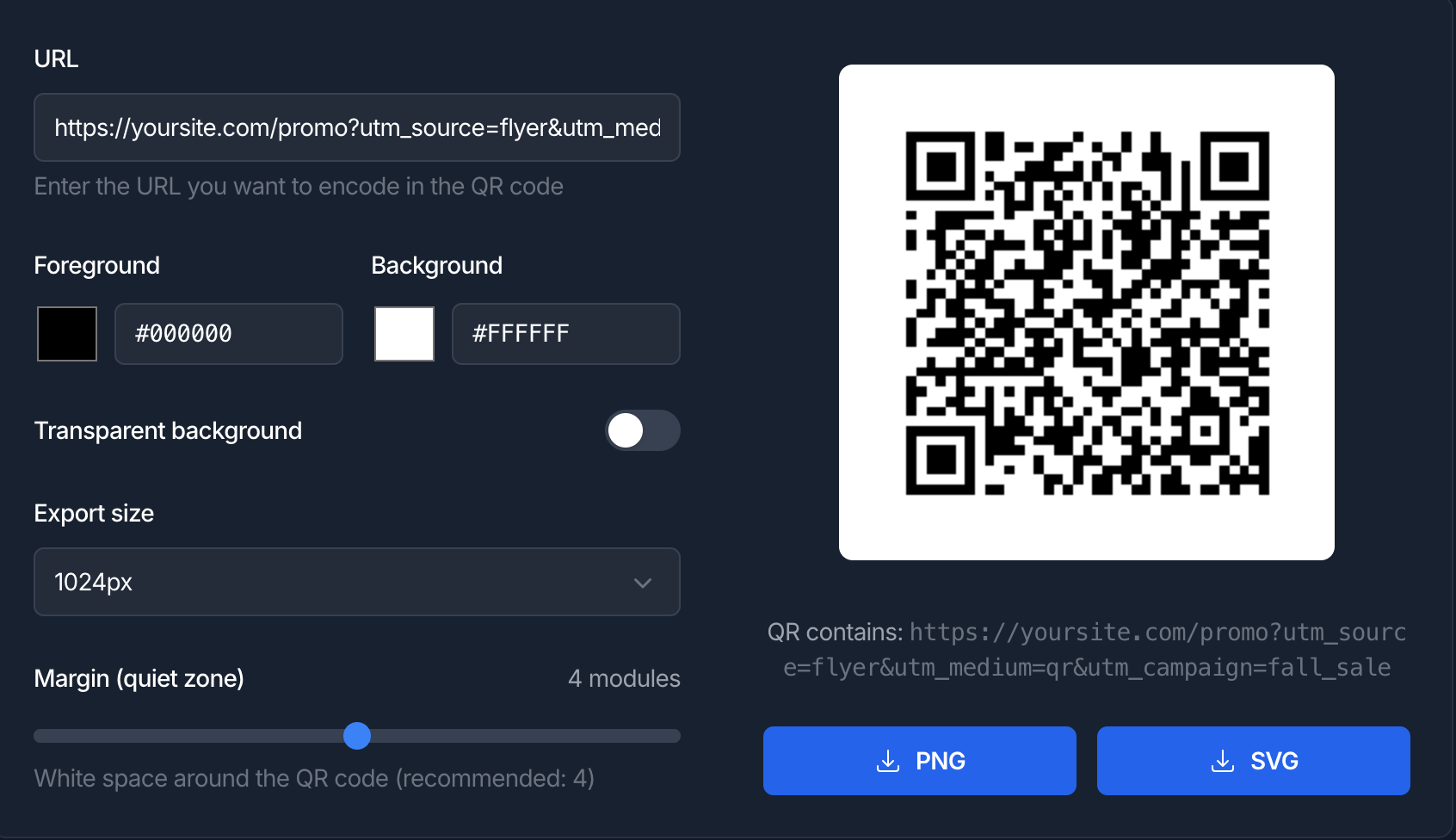
Now that you’ve created your UTM-tagged URL, it’s time to turn it into a QR code by following these steps:
- Open our QR Code Generator
- Paste your full URL (including UTM parameters)
- Customize the appearance if needed (colors, size)
- Download as PNG or SVG
That's it!
Your QR code now contains the tracking parameters. Every scan will be attributed correctly in your analytics.
Quick note on QR code sizing: For print materials, download the largest size or use SVG format. QR codes need to be at least 2cm × 2cm (about 0.8" × 0.8") to scan reliably, and larger is better for materials viewed from a distance like posters or banners.
How to View Your QR Code Data
Once your QR code is live and people start scanning, here's how to find the data in your analytics.
In GoodMetrics
GoodMetrics automatically captures UTM parameters with no additional setup required. Here’s how to view your QR code traffic:
- Go to Acquisition → UTM Source / Medium
- Look for entries with
qras the medium (e.g.,flyer / qr,poster / qr)
You can also use our global filters to only show traffic where the medium is qr.
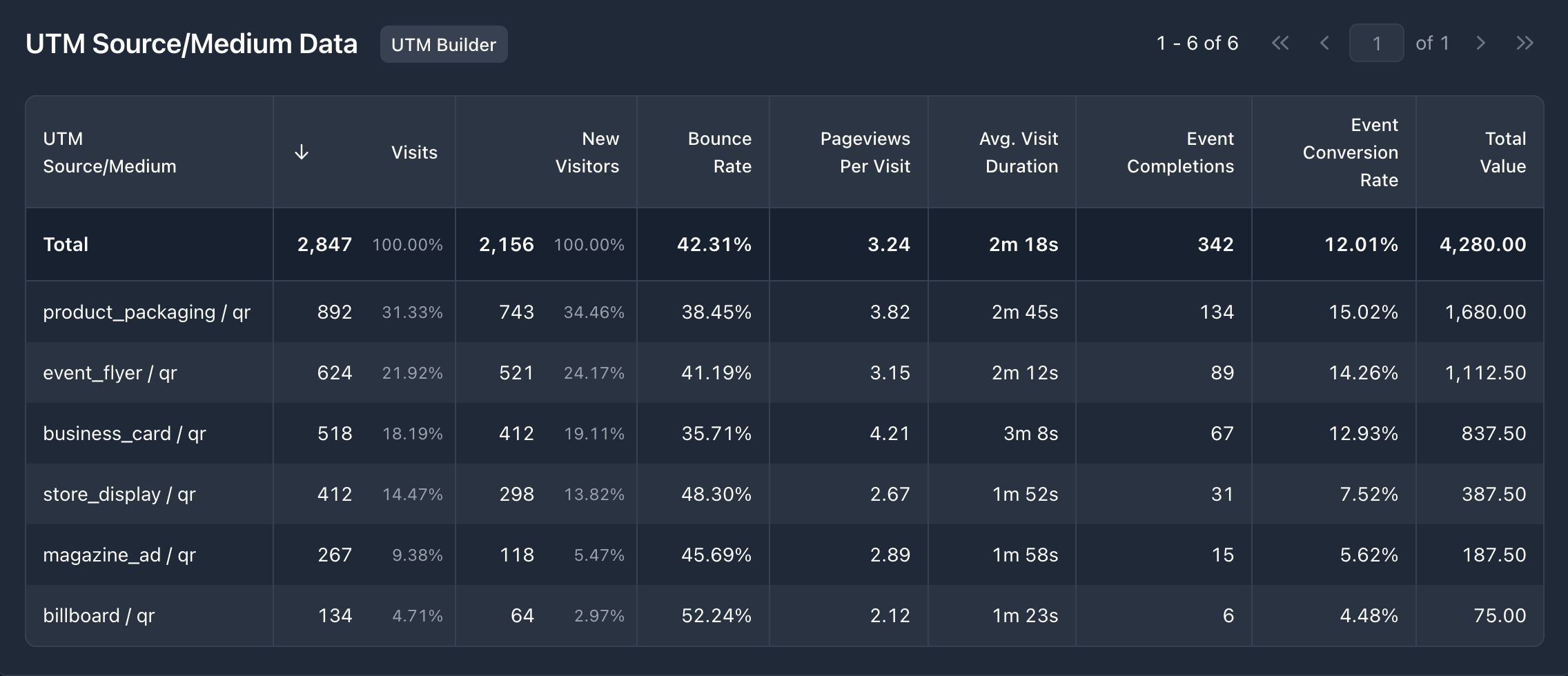
This report allows you to see:
- How many visitors came from each QR code
- Visit duration and pages per visit
- Conversions attributed to QR traffic (if you've set up custom events)
To see campaign-level data:
- Go to Acquisition → UTM Campaign
- Filter on UTM medium is
qrif you want to isolate just QR traffic
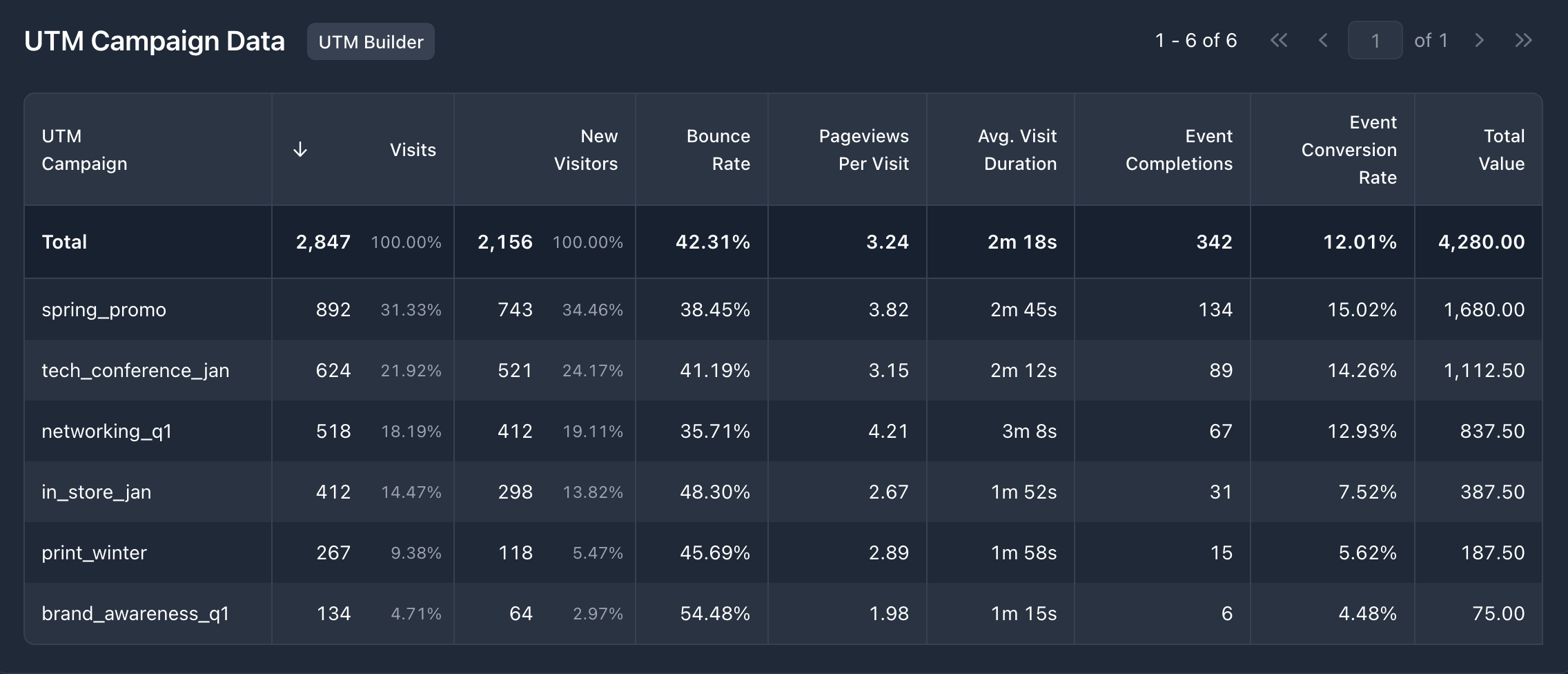
Now you've got the complete picture on how much traffic your QR code generated and how many people converted.
Plus, you were able to do it with no configuration, no custom reports, and no waiting for data to process.
In Google Analytics 4
GA4 also captures UTM parameters automatically, but finding the data requires a few more steps. Here’s how to view your QR code traffic:
- Go to Reports → Acquisition → Traffic acquisition
- Click the dimension dropdown (defaults to "Session default channel group")
- Change it to Session source / medium
- Use the search bar to filter for
qrto find your QR code traffic
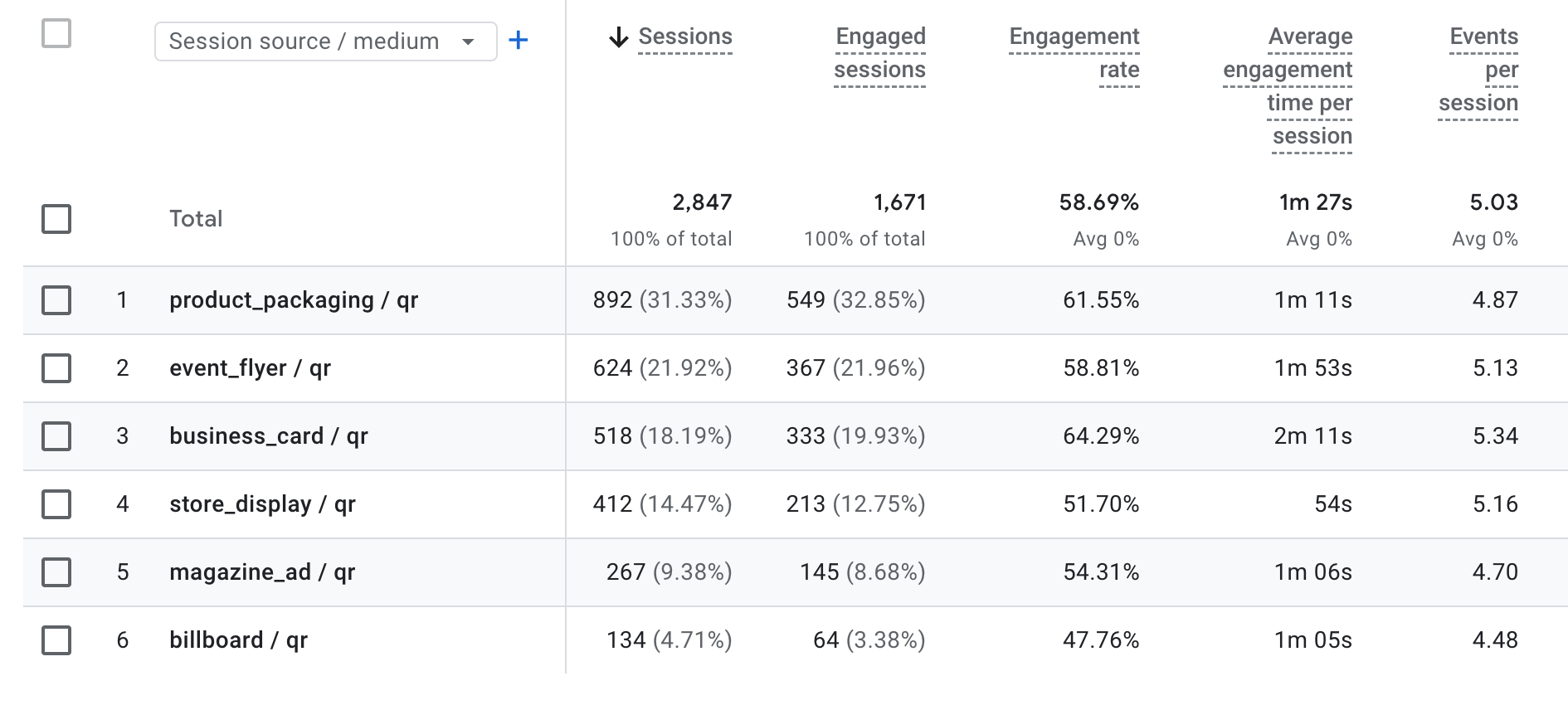
To see campaign-level data:
- Go to Reports → Acquisition → Traffic acquisition
- Click the dimension dropdown (defaults to "Session default channel group")
- Change it to Session campaign
- Filter on Session medium exactly matches
qrif you want to isolate just QR traffic
Note that GA4's data can take 24-48 hours to fully process, so don't panic if you don't see scans immediately after launching a campaign.
Common QR Code Tracking Mistakes to Avoid
Using the same UTM parameters for different placements. If you use identical parameters for your restaurant menu and takeout bag, you won't know which one is driving more traffic. Give each placement a unique source.
Forgetting to test the QR code Always scan your QR code before printing thousands of copies. Verify it goes to the right URL and the UTM parameters appear correctly.
Making the QR code too small. Codes under 2cm × 2cm can be difficult to scan, especially in poor lighting. When in doubt, go bigger.
Not using qr as the medium. Using inconsistent medium values like qrcode, qr_code, or print makes it harder to aggregate all your QR traffic later. Stick with qr.
Wrapping Up
Tracking QR codes comes down to one simple practice: adding UTM parameters to your URL before generating the code. That's what transforms a basic QR code into a measurable marketing asset.
To make the process as simple as possible:
- Build your URL with our UTM link builder.
- Generate your QR code with our QR Code Generator
- Check your results in your analytics tool of choice — or get started with GoodMetrics